
Set your password
-
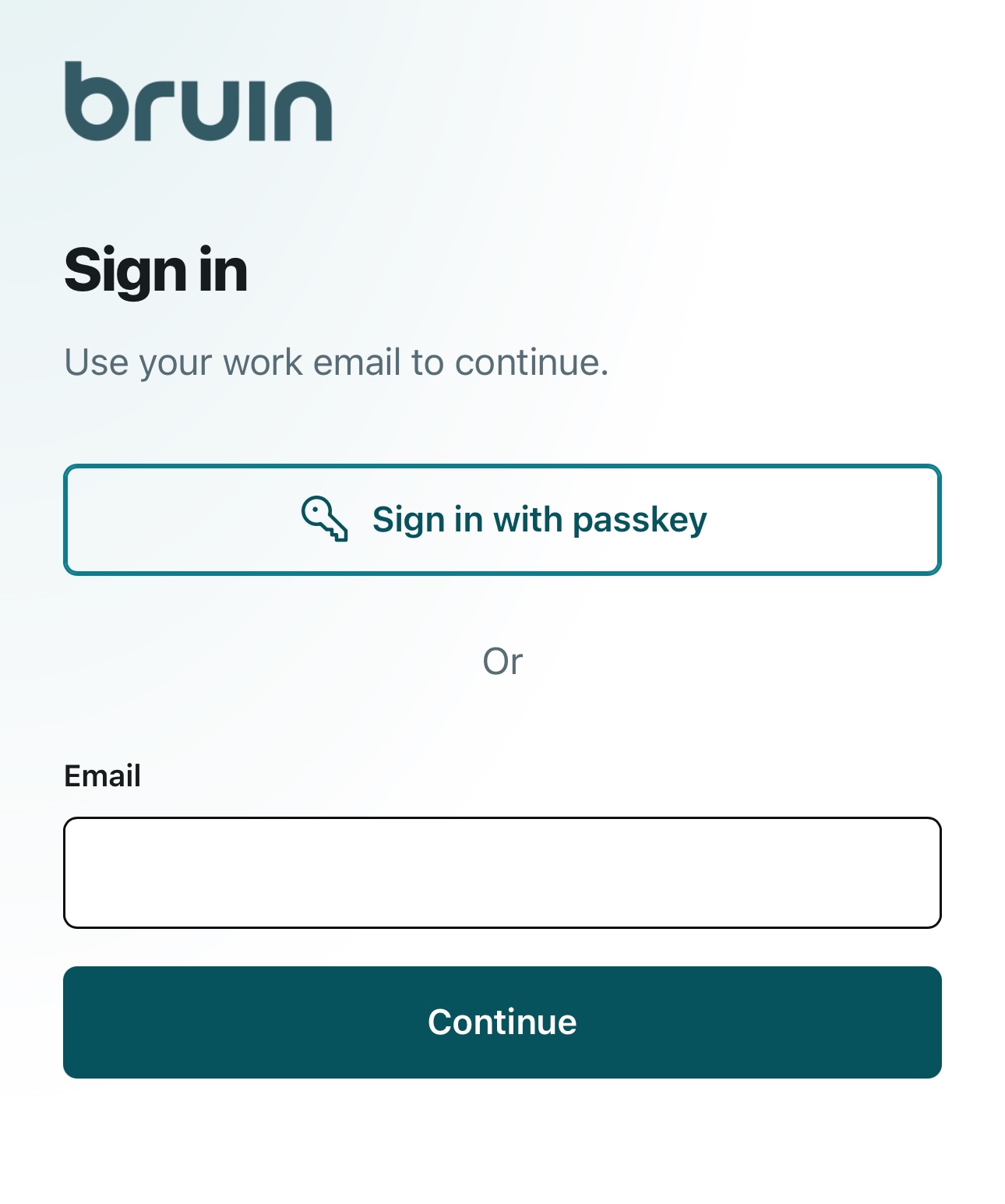
Enter your info
Enter your work email in the Email field and select Continue. This will trigger an authentication code to be sent to your email address.
-
Get your code
Open the email, copy the code, type it in the Code field and select Continue. If nothing arrives, select Resend code.
-
Choose a password
Passwords must be 12 to 64 characters, spaces are allowed. Each requirement shows a check mark when you meet it. Click continue.
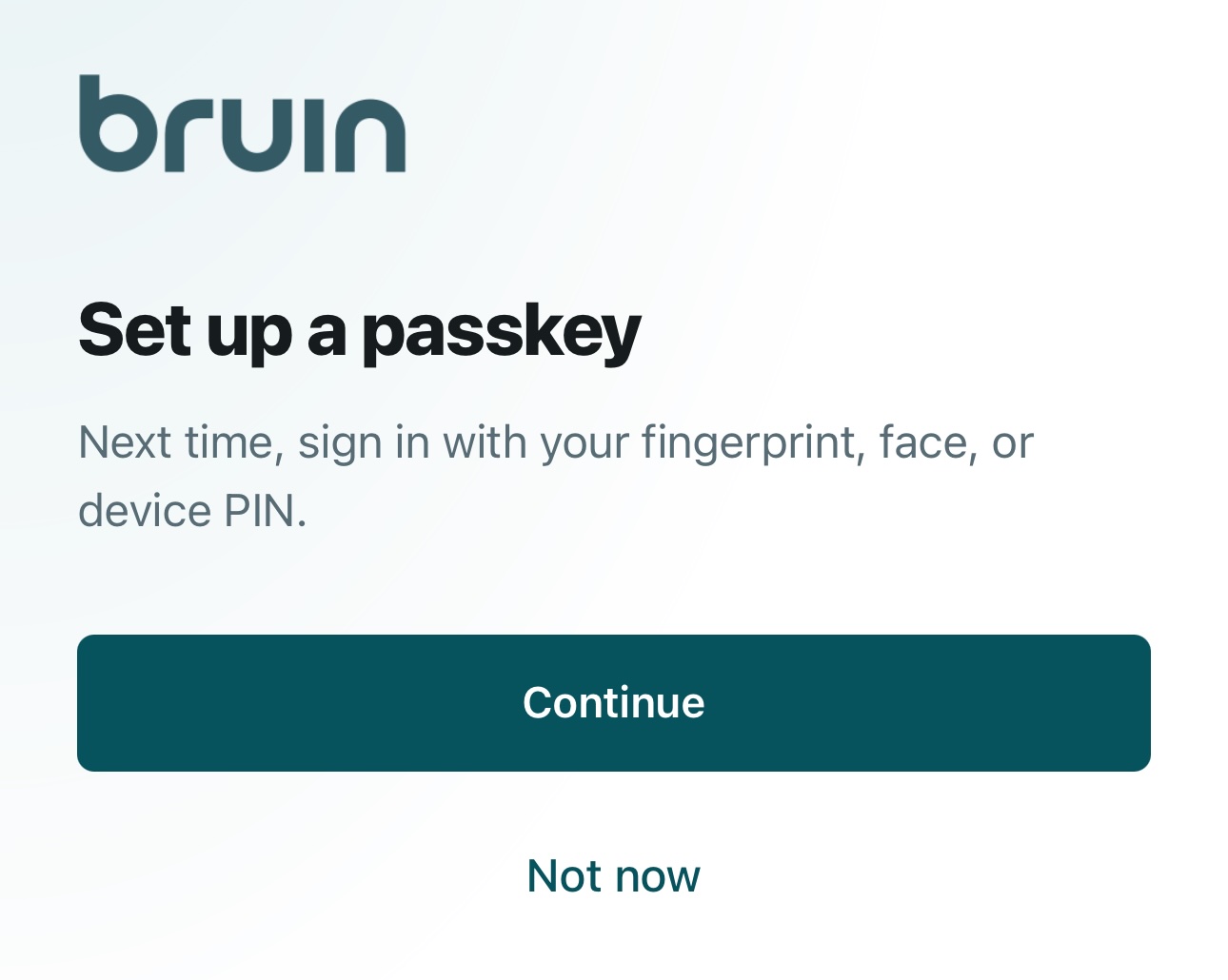
Set up a passkey (optional)
-
Hit continue
A pop-up will appear and prompt you to choose where to save your passkey.
-
Choose your method
On an iPhone or Android device, scan the QR code and follow the prompts to save a passkey. Alternatively, choose Security Key to use your own physical USB security device.
Set up MFA
-
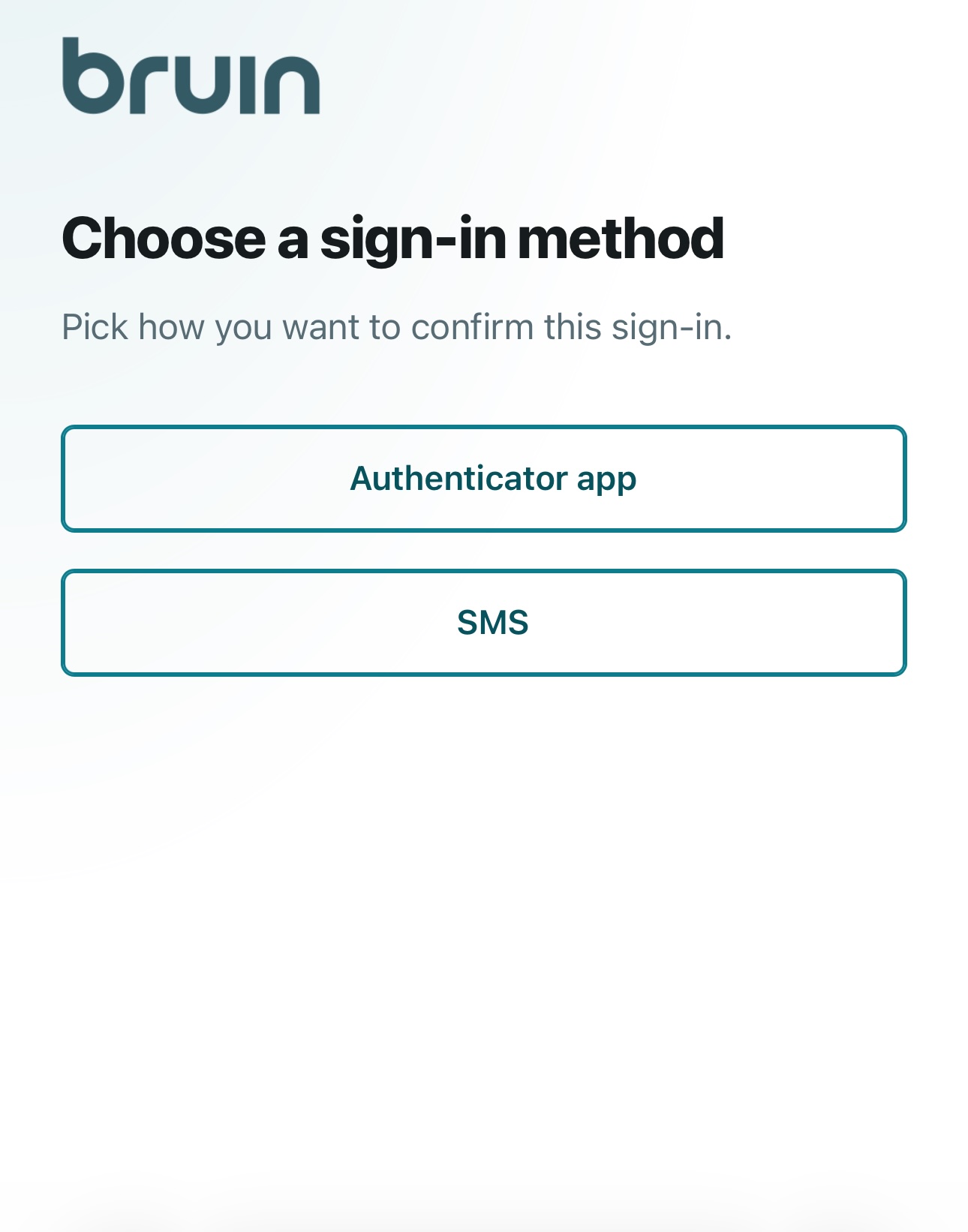
Choose sign-in method
On the Choose a sign-in method page, select SMS or Authenticator app to set up multi-factor authentication.
-
SMS or Authenticator
For SMS, enter your phone number and continue. You will receive a text message. For Authenticator, scan the shown QR code with your mobile device. The authenticator app will show a one-time code. Enter the code in the Code field and select verify.
-
Accept Terms
Review the terms and conditions. Select the I agree checkbox and select Submit.
Common questions
-
What is changing with sign-in?
We've made some security updates. The first time you sign in, you'll confirm your work email, choose a password, and add a second way to verify it's you. You can also save a passkey if you'd like. You'll only do this once. -
Will I need to complete setup every time I sign in?
No. Setup is a one-time step. After that, you'll sign in the same way each visit. -
What if I don't receive the email code?
Check your spam and junk folders, then select Resend code. Enter the code only on the sign-in page you already have open. We'll never ask you to share a sign-in code. If it still doesn't arrive, call us and we'll help. -
What are the password requirements?
Your password needs to be 12 to 64 characters. Spaces are allowed. The page checks off each requirement as you meet it. -
What if I forget my password?
On the password screen, select Reset password. We'll email your work address so you can choose a new one. -
Do I have to set up a passkey?
No. A passkey is optional, and we recommend it. It lets you sign in with the fingerprint, face, or PIN on your phone or tablet, or with your own USB security key. To skip it, select Not now and continue. -
Should I use an authenticator app or a text message?
We recommend an authenticator app, such as Google Authenticator or Microsoft Authenticator, when your phone or tablet can run one. You'll scan a QR code once, and the app will show a new code whenever you sign in. A text message is available if an app isn't an option for you. -
What if the QR code won't scan?
Select Trouble scanning and follow the steps on that screen. During setup, you can also go back and choose the other method. -
What if I don't receive a text message, or I entered the wrong number?
Select Resend code. If you're still setting up, select Choose another method and start again with the number or app you'd like to use. If you've already finished setup, Choose another method shows the options you saved. Please don't try to turn the second check off yourself. Call us and we'll help. -
How do I sign in after setup?
Go to https://app.bruin.com. If you saved a passkey, select Sign in with passkey and confirm on your phone, tablet, or USB key. Otherwise, enter your work email and password, then the code from your authenticator app or text message. -
Where do I go if I need more help?
Call us at 1 (800) 876-9823. Have your work email ready, and we'll help you finish setup or sign in. We won't ask you to share a sign-in code